


Cancelling Your Paid Calendly Subscription
Overview
You can cancel a paid subscription anytime by switching your account to the Free plan from the Billing page. You’ll keep your paid features until the end of your current billing cycle; after that, your account will automatically move to the Free plan.
Step-by-Step Instructions
- Go to Billing: From your Calendly home page, open the Admin Center, then select Billing.
- Start the downgrade: On the Billing page, select Change plan, then Downgrade.
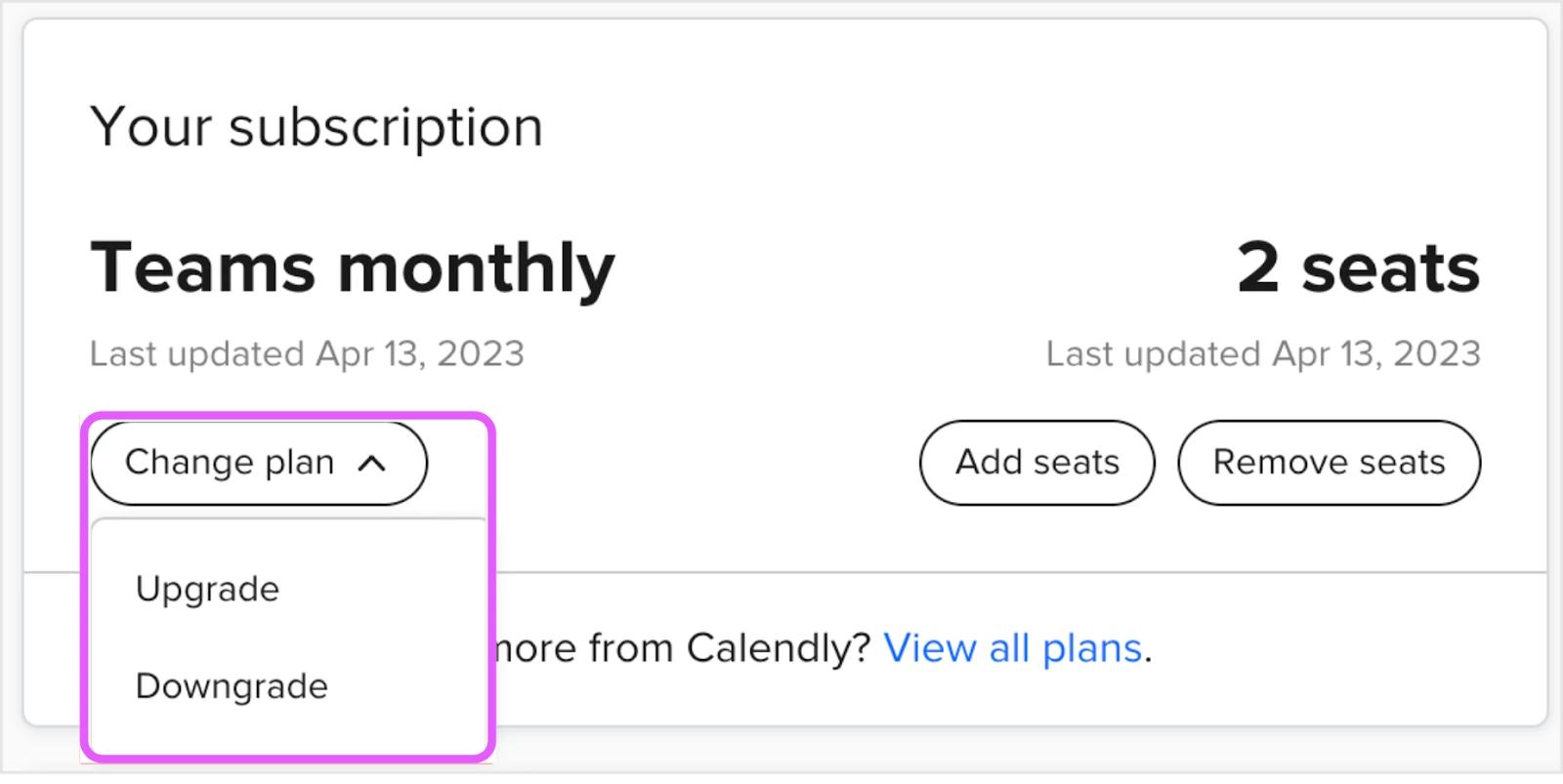
- Choose the Free plan: Select the plan that best fits your needs (choose Free to cancel paid features). You’ll retain paid features until the end of your current billing period, then your account switches to Free automatically.
Notes & Limitations
- Cancel by downgrading: Cancelling is done by switching to the Free plan; there isn’t a separate “cancel” button for paid subscriptions.
- Billing cycle timing: Paid features remain available until the end of the current billing cycle; the downgrade takes effect afterward automatically.
- Refunds: Refunds are not guaranteed and are reviewed case by case by the Billing team after your subscription is cancelled; contact billing@calendly.com.
- Booked events: Existing booked events remain on your account; cancelling your subscription does not delete them.
- Deleting your account: If you want to permanently remove your account and data, follow the separate account deletion instructions (different from cancelling/downgrading).
Frequently Asked Questions
Q: What happens to my booked events after I cancel?
A: Your booked events will remain; they won’t be deleted just because you cancelled your subscription.
Q: How do I delete my account and remove all data?
A: Deleting your account is separate from cancelling your subscription. Follow the account deletion instructions if you want to remove all data from Calendly.