


How to Add Additional Attendees to a Booked 1:1 Calendly Meeting
Overview
You can't add guests to a booked 1:1 directly from the Calendly meeting after it's scheduled. Add them either to the calendar event itself (Google/Outlook) or reschedule the existing Calendly meeting to the same time and add guests during rescheduling so they receive Calendly communications. Guests added only in your external calendar will not receive Calendly reminders or follow-ups.
Step-by-Step Instructions
- Quick one-off: Add guests in your external calendar
- Open the existing calendar event (Google Calendar, Outlook, etc.).
- Add the additional email addresses as event guests.
- This sends them a calendar invite from your calendar system, but not Calendly reminders.
- Recommended to keep Calendly communications: Reschedule to same time and add guests
- Go to the Calendar page and select the meeting.
- Choose Reschedule.
- On a paid plan, choose Reschedule meeting now.
- Keep the same date/time.
- Use Add Guests to enter the additional email addresses, then confirm the reschedule.
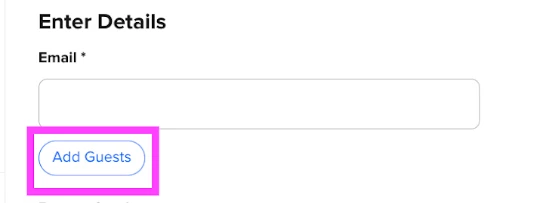
- (Optional) Add a note explaining the meeting time isn't changing; you're just adding attendees. This keeps guests tied to the Calendly booking for future reschedules/cancellations.
- For future bookings with many attendees: Use a Group event type
- Create a Group event when you expect multiple invitees; set a capacity so several people can book the same slot.
Key Notes & Limitations
- 1:1 events don’t accept additional invitees after booking through Calendly; adding them only on your calendar won’t trigger Calendly reminders or workflows.
- Rescheduling in Calendly cancels the original calendar event and creates a new one for Calendly invitees; guests added only in Outlook/Google won’t transfer automatically to the new event. Adding them via Add Guests during the reschedule keeps them attached to the Calendly event.
- Invitees can add up to 10 guests at booking time on 1:1s, but this feature isn’t available for Group events.
- Group events use email confirmations rather than calendar invites; each invitee gets their own .ics and updates don’t propagate between invitees.
Frequently Asked Questions
Q: Will guests added only in Google or Outlook get Calendly reminders or workflows?
A: No. Guests must be added through Calendly (for example, via rescheduling and Add Guests) to receive Calendly reminders and workflows.
Q: Can I add guests to a Group event after it’s booked?
A: You can increase the invitee limit on the scheduled Group meeting to allow more people to join, but Group events don’t use the 1:1 guest feature.
Q: What happens to guests I added directly in Outlook if the meeting is rescheduled in Calendly?
A: They’ll be notified the original event was canceled, but they won’t be added to the new event automatically unless you add them via Add Guests during the reschedule.
Q: How can I avoid this in the future when I often need to coordinate a larger group?
A: Use a Group event when multiple attendees need to join the same time, or use a Meeting Poll to find a time across a larger group before booking.
Links & Resources
- Advanced booking form features: Guests at booking time and limits (Calendly Help Center)
- Group event type overview: Capacity and how confirmations work (Calendly Help Center)
- Meeting Polls overview (Calendly Help Center)
- Community thread: How do I add more guests to an event already scheduled? (Calendly Community)