


Letting Invitees Choose the Meeting Duration
Overview
If you’re on a paid Calendly plan, you can add up to four duration options to a single Event Type so invitees can pick how long to meet during booking. This reduces the need for multiple links and Calendly will automatically adjust available time slots based on the selected duration.
Step-by-Step
- Open an Event Type: Create a new Event Type or open an existing one.
- Add duration choices: Under Duration, select Add duration option and choose up to four meeting lengths.
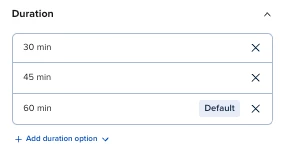
- Set the default: Pick one option to display as the default on your scheduling page.
- Publish and share: Share the Event Type link. Invitees will see a dropdown of duration options during booking, and available times will update automatically based on their choice.
Key Notes & Limitations
- Paid plans only: Duration options are available on paid Calendly plans.
- Up to four options: You can offer a maximum of four duration choices per Event Type.
- One link, multiple lengths: You no longer need separate Event Types for each meeting length; invitees choose their preferred duration from a dropdown during booking.
Related Questions (FAQ)
Q: Do invitees see different time slots when they change the duration?
A: Yes. Calendly adjusts available time slots automatically based on the selected duration during booking.
Q: Do I still need multiple Event Types for different lengths?
A: No. You can consolidate into one Event Type with up to four duration options and simplify your scheduling page.
Links & Resources