Hi all. My lack of availability on my Google calendar is not showing up on Calendly despite me syncing the two. I’m about to launch my business website and I’m stuck as I don't want it to go live until I’m sure my customers won't be able to unknowingly double book. Also Calendly is not asking for payment at time of booking despite me setting this up. Any tips? Thanks!

Solved
Calendly not syncing with Google calendar AND not asking for payments at time of booking! HELP!
Best answer by Kelsi
Hey there
Let’s start with the availability/connected calendar issue. =)
Calendly will view your Google events with this "busy" event status as scheduling conflicts and will automatically remove the time from your scheduling page (including all-day or multi-day events). You can access and change this setting by double-clicking on the event id in your calendar and changing the status from "free" to "busy" as shown below:
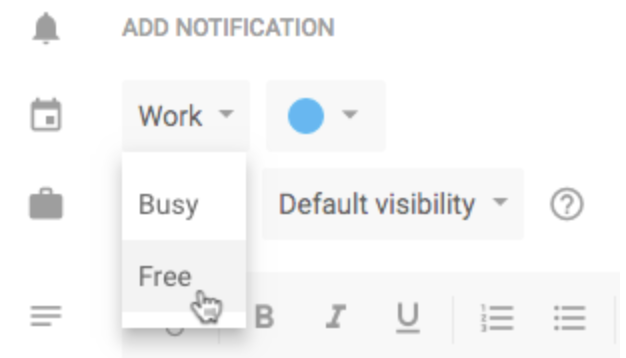
You’ll want to make sure that any and all events on your Google Calendar that you want to be read as conflicts in Calendly have this “busy” status, or they will not be removed from your Calendly booking page.
Additionally, to see why you're free when you should be unavailable: go to your Calendly home page > select "account" and then "calendar connections" > at "check for conflicts" select "edit" > select all calendars that should be checked for conflicts. Make sure that the sub-calendar(s) within your Google Calendar that have “busy” events you want read as conflicts are selected to be “checked for conflicts” in this section of your Calendar Sync page!
Now, let’s focus on your payment collections!
We have integrations with both Stripe and PayPal. You can connect your Stripe or PayPal account to Calendly to collect payments when your invitees schedule with you.
When you set up these integrations, you head to your integrations page and select either PayPal or Stripe, then follow the prompts to connect either of those accounts - this is step one!
Once PayPal/Stripe is connected to your Calendly account, you will be able to add payments to new or existing event types from the Event Types page. You will select the event type you would like to edit and expand the Collect Payments section to enable the "Accept payments with PayPal" or "Accept payments with Stripe" setting. This is step two! Make sure you have actively set up each event type to collect payments in addition to actually integrating with PayPal or Stripe.
If you have taken these steps - please let me know, and include screenshots of the payment collection section of your event type settings so that I can help you look a little further into the problem.
Looking forward to hearing back from you!
This topic has been closed for replies.

Sign up
Already have an account? Login
Not a Calendly user yet? Head on over to Calendly.com to get started before logging into the community.
Employee Login Customer LoginLogin to the community
Not a Calendly user yet? Head on over to Calendly.com to get started before logging into the community.
Employee Login Customer LoginEnter your E-mail address. We'll send you an e-mail with instructions to reset your password.