


“Approval Required” Prompt When Logging Into Calendly
Scenario / Question
You may encounter an “Approval required” prompt when trying to log in to Calendly with your Microsoft 365 (Office 365) SSO. This used to work previously. Here’s what changed and how you can regain access.
Overview
This prompt is generated by Microsoft Entra ID (Azure AD), not by Calendly. Your Microsoft 365 tenant admin must grant consent for the updated Outlook permissions Calendly now requests, or you can ask Calendly Support to switch your login to username/password as a workaround. Specifically, Microsoft changed how OAuth permissions are handled, and Calendly now requests Calendars.ReadWrite.shared during Outlook calendar connection, which can re-trigger tenant admin consent requirements.
Step-by-Step
- Confirm what you’re seeing: If you see “Admin consent required” or “Approval required” during Microsoft 365 SSO or when connecting your Outlook calendar, this is coming from your Microsoft tenant.
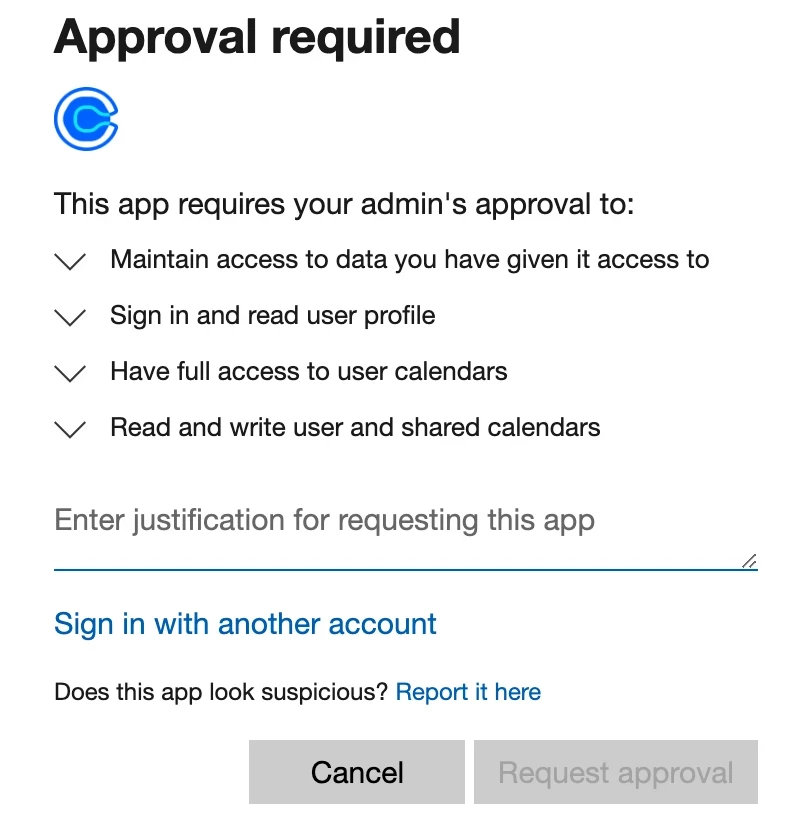
- Contact your Microsoft 365 admin: Ask a tenant admin to complete the admin consent flow for Calendly’s Outlook integration so users can connect their Outlook calendars with the updated permission set (including Calendars.ReadWrite.shared).
- Share Microsoft’s guide with your admin: Provide them Microsoft’s instructions for configuring the admin consent workflow so they can review and approve the pending request for Calendly.
- Retry the connection: After admin consent is granted, reconnect your Outlook calendar or retry SSO. Users who previously needed admin consent will need to renew consent after this change.
- Use a temporary workaround if needed: If you need immediate access and your admin will not approve, you can contact Calendly Support to switch your login method to username/password so you can sign in without Microsoft SSO. Note: This bypasses the SSO login challenge only; it does not connect your Outlook calendar.
Key Notes & Limitations
- The “Approval required” screen is enforced by Microsoft and is controlled by your organization’s Entra/Azure policies, not by Calendly.
- Calendly added the Calendars.ReadWrite.shared scope to align with Microsoft’s OAuth changes; this can require renewed tenant admin consent for affected users.
- If your organization prefers user-managed consent going forward, your tenant admin can grant tenant-level admin consent to reduce repeated prompts.
- Some users may still access Calendly if they do not log in through Microsoft 365 SSO, but Outlook calendar integration requires Microsoft permissions to be granted.
Related Questions (FAQ)
Q: Why do some coworkers still log in with Microsoft 365 SSO without seeing “Approval required”?
A: They may not be hitting the updated consent checkpoint yet, or their accounts already have the necessary consent recorded. Behavior depends on your tenant’s consent policies and whether users reconnect their Outlook calendar.
Q: Can Calendly Support remove the “Approval required” message?
A: No. That message is from Microsoft. Calendly Support can switch your login to username/password as a workaround for access, but calendar connection via Outlook still requires admin consent per your tenant’s policies.
Q: Where does an admin approve the request?
A: Admins can use Microsoft’s admin consent workflow in Entra ID (Azure AD) to view and approve pending requests for enterprise apps like Calendly. Share Microsoft’s configuration guide for the admin consent workflow with them.