


Integrating Multiple Google Sub-Calendars with Calendly
Scenario / Question
How can I integrate two calendars (WORK and PERSONAL) that live under the same Google account so Calendly checks both for availability and conflicts?
Overview
Yes, you can have Calendly check multiple sub-calendars under a single connected Google account for conflicts. The key is to edit the Check for conflicts settings in Calendar sync and select all sub-calendars you want Calendly to read as busy.
Step-by-Step Instructions
- Open your calendar settings In Calendly, go to Settings → Scheduling → Calendars.
- Under Calendars to check for conflicts, select your calendar:
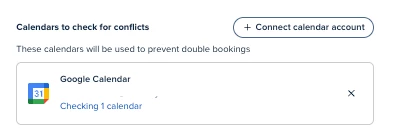
- Select sub-calendars In the list, choose all Google sub-calendars (for example, WORK and PERSONAL) you want Calendly to check for busy times. Save your changes.
- Confirm availability Return to your booking page and verify that times overlapping with events on any selected sub-calendar are no longer offered.
Key Notes & Limitations
- Calendly can check multiple sub-calendars from the same connected Google account for conflicts when they are selected in Check for conflicts.
- WORK and PERSONAL in this scenario are sub-calendars under one Google account, not separate Google accounts.
Frequently Asked Questions
Q: Do I need to connect my Google account twice to include both WORK and PERSONAL?
A: No. Connect the Google account once, then select both sub-calendars in Check for conflicts.
Q: Why am I still seeing available times when I have a PERSONAL event?
A: Make sure the PERSONAL sub-calendar is selected in Check for conflicts, and that the event is marked as busy.