


Sharing a Calendly Link with Preselected Time Slots
Scenario / Question
How can I share a Calendly link with only a few preselected time slots (e.g., via WhatsApp or Messenger, Email), so invitees can choose only from those options?
Overview
For Emails, you can use the “Add times to email” feature in Calendly directly. For messaging apps like WhatsApp or Messenger; you can share your regular booking link or create a single-use link with restricted availability for that specific invitee.
Step-by-Step
- Open your event type: Choose the existing event you want to offer to this invitee.
- Customize availability for one person using Create Single-Use link: Use date-specific hours or remove days/times you don’t want available, leaving only the 2–3 options you want them to pick from.
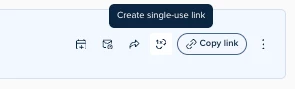
- Generate the single-use link: Create the customized link intended for a single invitee so only your preselected slots appear to them.
- Share the link via WhatsApp or Messenger: Paste the single-use link into your message so the invitee can book from just those options.
Key Notes & Limitations
- “Add times to email” does not work in WhatsApp/Messenger; it’s email-only.
- Sharing your standard booking link will show all availability unless you customize it for a single invitee first.
- Customize Once and Share creates a single-use link tailored to one invitee’s experience.
Related Questions (FAQ)
Q: Can I send a few clickable time options directly inside a WhatsApp message?
A: No. The “Add times to email” feature doesn’t translate to messaging apps; use a customized single-use link instead.
Q: How do I limit availability to only certain days or times for one invitee?
A: Use Customize Once and Share, then set date-specific hours or remove unwanted days/times before sharing the single-use link.
Links & Resources
- Community: “share link with preselected slots?” (Calendly Community)