


How to Connect fonio with Calendly for Automated Appointment Booking
fonio is an AI phone assistant platform that answers calls, takes the load off your team, and ensures you're reachable 24/7 — so no lead, customer, or opportunity is missed. In this guide, you'll learn how to connect fonio with your Calendly account so your AI assistant can directly schedule appointments on your calendar, step by step.
You can learn more about fonio here: https://www.fonio.ai/en
What you need to get started
-
An active Calendly account
-
A pre-configured event type in Calendly (e.g., "Initial Consultation")
Steps To Connect the integration:
Have issues during the integration process? You can reach out to the team at fonio.ai by emailing support@fonio.ai
1. Open fonio and activate appointment booking
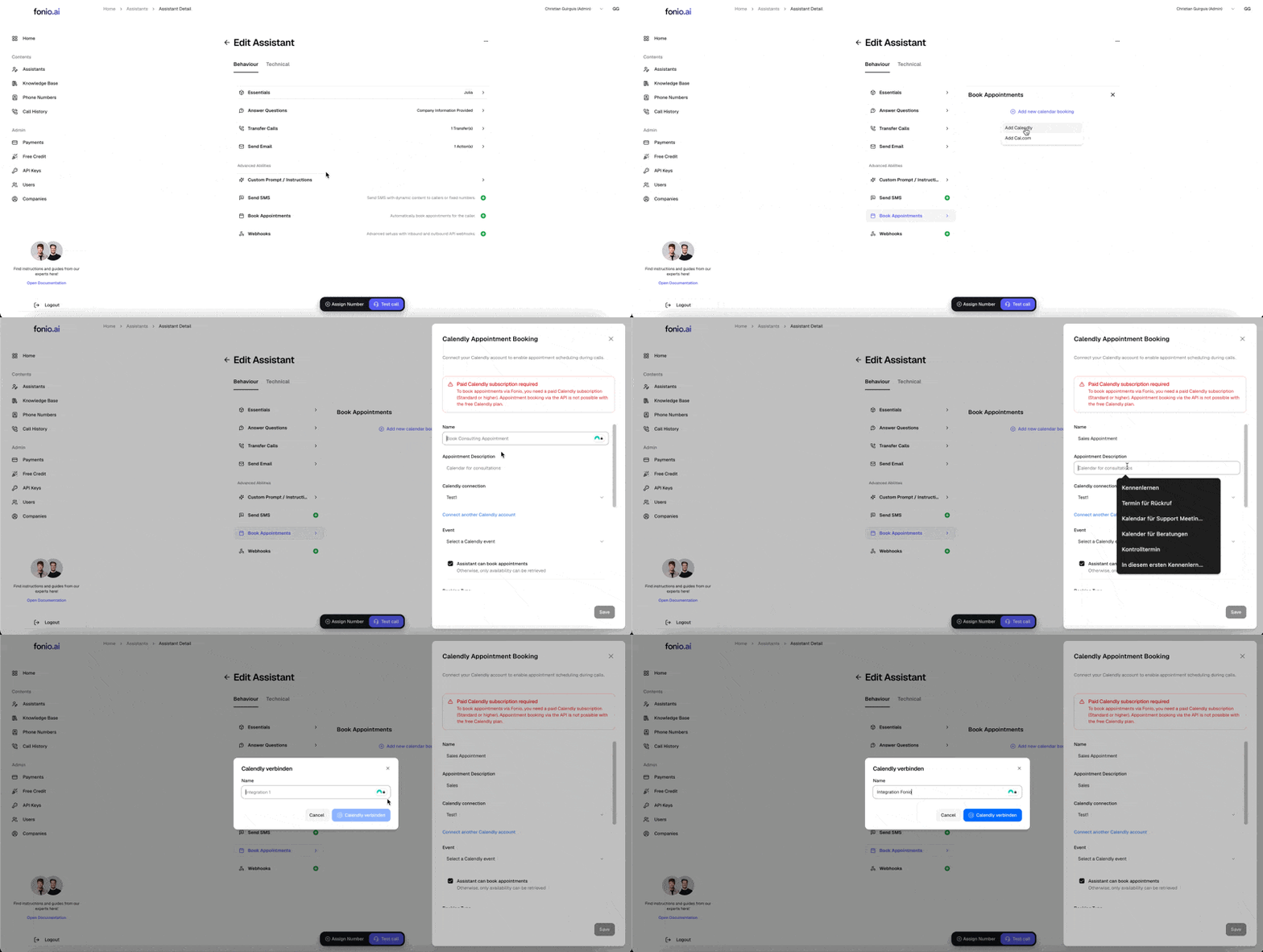
Log in to your fonio dashboard and select the desired assistant. Navigate to the Book Appointments section in the assistant settings.
2. Select Calendly as provider
Choose Calendly from the dropdown menu as the provider.
3. Establish connection (OAuth login)
Click the "Connect with Calendly" (or "Connect") button.
-
A secure Calendly pop-up window will open.
-
Log in with your usual credentials (e.g., "Sign in with Google").
-
Confirm the permission request so fonio can access your available times and create new bookings.
-
After confirmation, the window will close automatically and the connection will be established.
4. Select event type
Once the connection is active, fonio will automatically load your available Calendly events. Select the event that the assistant should book for callers (e.g., "15 Minute Meeting").
❗Important: Make sure that this Calendly event does not contain any required fields (custom questions). The assistant only needs the name and email address. Additional required questions may prevent the booking process.
5. Set permissions and behavior
You can now specify what the AI will do over the phone:
-
Check availability only: The AI only provides information about free slots.
-
Book appointments directly: The AI completes the booking on the phone.
6. Choose confirmation method
Select whether the caller should receive confirmation via email or SMS. Tip: Confirmation via SMS is usually more efficient since the caller's mobile number is automatically detected.
7. Save and test
Click Save. Then use the audio test function to check the workflow. Simply ask the assistant: "Are you available next Tuesday for a conversation?"