


Maximizing Automation with Workflows
Gone are the days of manually sending reminders, reconfirming bookings, and following up post-meeting! Be your own best friend and do yourself a fun favor— take advantage of Calendly Workflows.
Who can use this feature?
Calendly’s Workflows are available to users on our Standard, Teams, and Enterprise plans, as well as the legacy Professional plan.
FYI: The Teams plan is available for both multi-user organizations as well as for individual use. To learn about the features in each plan, feel free to check out our pricing page!
Here are three of my favorite ways to use Workflows:
🧠️ Reminders
- Reminder texts and emails can be programmed for both you as the host and for your invitees.
- Reminder workflows help to reduce no-shows and allows you to send additional meeting prep materials, if applicable for the event type.
- You can opt to include the reschedule/cancellation links in your reminders if you would like to provide invitees easy access.
👍️ Reconfirmations
- Reconfirmation workflows can be used to request that your invitees reconfirm their booking with you so you don’t have to check in.
- Reconfirmations will appear on your Meetings page.
📅 Follow Ups
- The magic of the post meeting thank you email can now be automated!
- Follow up workflows can be used to send links to additional materials and resources, prompts to book another meeting, requests for meeting attendees to complete a survey, and more.
- Things happen! If you have a no-show, simply mark the meeting as a no-show from your Meetings page and any applicable follow up workflows will halt.
Where are my Workflows sending from?
📧 Emails
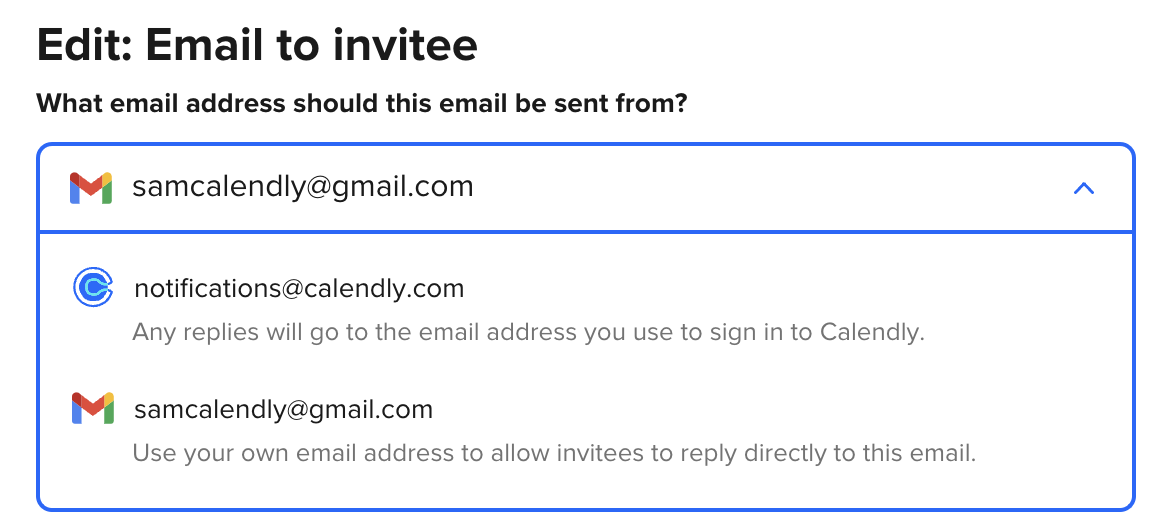
As a default, Workflows emails are sent from notifications@calendly.com. If you would like your emails to come from your Gmail or Outlook email address, you can integrate your email accounts from the Integrations page.
💡Tip: If you anticipate that your invitees may be confused by an email from notifications@calendly.com, you may want to consider integrating your email for workflows.
📱SMS Texts
Our SMS text reminders are powered by Twilio. They are sent from a toll-free 10-digit number and are not able to be sent from a user's personal telephone number at this time.
Where can I track my Workflows?
Once a Workflow runs on an event, you will be able to view the delivery timeline by navigating to your Meetings page and clicking into the event details.
💡Tip: The Gmail/Outlook for Workflows integrations are not the same as your calendar connection. If you have your Google or Outlook calendar connected from your Calendar Connections page but are still not seeing your email as a ‘send from’ email when editing your Workflow (as shown below), you may still need to connect your email for Workflows from your Integrations page.
Click below to be brought to the corresponding integrations page in your Calendly account:
Gmail for Workflows