


New ways to get paid with Calendly + Stripe
Hey Calendly Community 👋
I’m back with more exciting updates and new Calendly payment features!
We just rolled out two new ways to get paid with Calendly: meeting packages and payment links.
Important: As of now, these features are only available for Stripe-connected accounts. If you’re not connected to Stripe, you won’t be able to see the new Sell tab (that’s where these features live)
What’s new
| Meeting packages Sell a multi-session bundle of 1:1 meetings with upfront payment. After purchase, clients can schedule sessions all at once, or over time.
| Payment links Create and share custom links to request payment for anything, anytime — before or after a meeting, or for services not tied to scheduling. Examples:
|
How to get started
From your Calendly account, go to the Sell tab in the left-hand menu.
⚠️ Not seeing Sell? Be sure you’re connected to Stripe first.
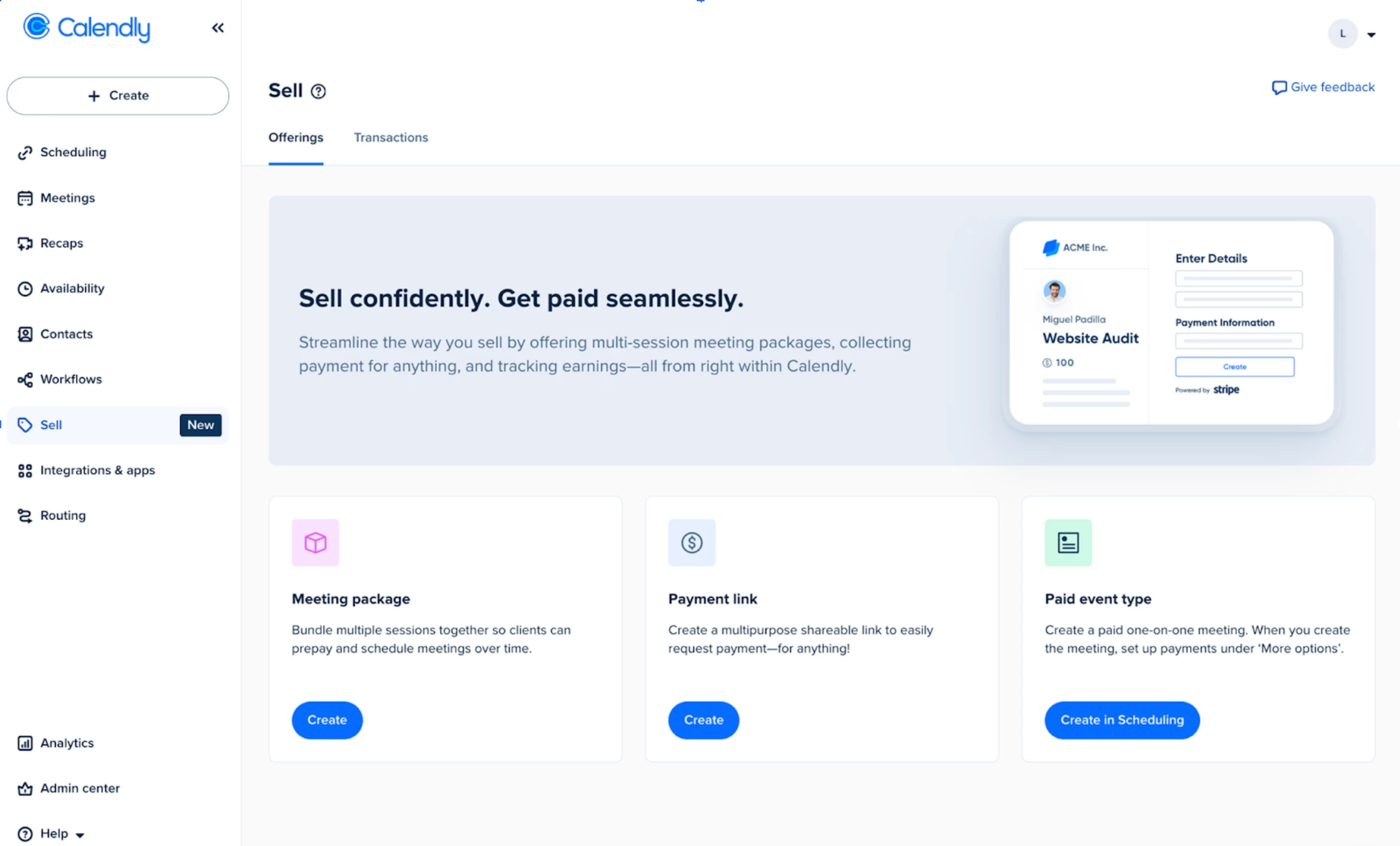
Create a meeting package
Note: Meeting packages use an existing 1:1 event type. Be sure you’ve already created the event type you’d like to use prior to creating your meeting package.
- Under Meeting package, select Create
- Add your package details (name, custom header image, package description) and select the event type you want to use for your package
- Determine the number of sessions your package includes, and click Continue
- Determine the price, currency, and include optional payment terms
- (Optional) Edit your confirmation message and customize the confirmation email, then click Create
Create a payment link
- Under Payment link, select Create
- Add your link details (name, header image, description) and click Continue
- Determine the price, currency, and include optional payment terms
- (Optional) Edit your confirmation message and customize the confirmation email, then click Create
Once you create your meeting package or payment link, you can copy the link and share wherever you’re offering your services: on your website, email, text, and more.
Manage your Offerings and Transactions
From the Offerings tab on the Sell page, you can view all of your meeting packages and payment links. To edit an offering, select the package or link, make your changes, then select Save changes.
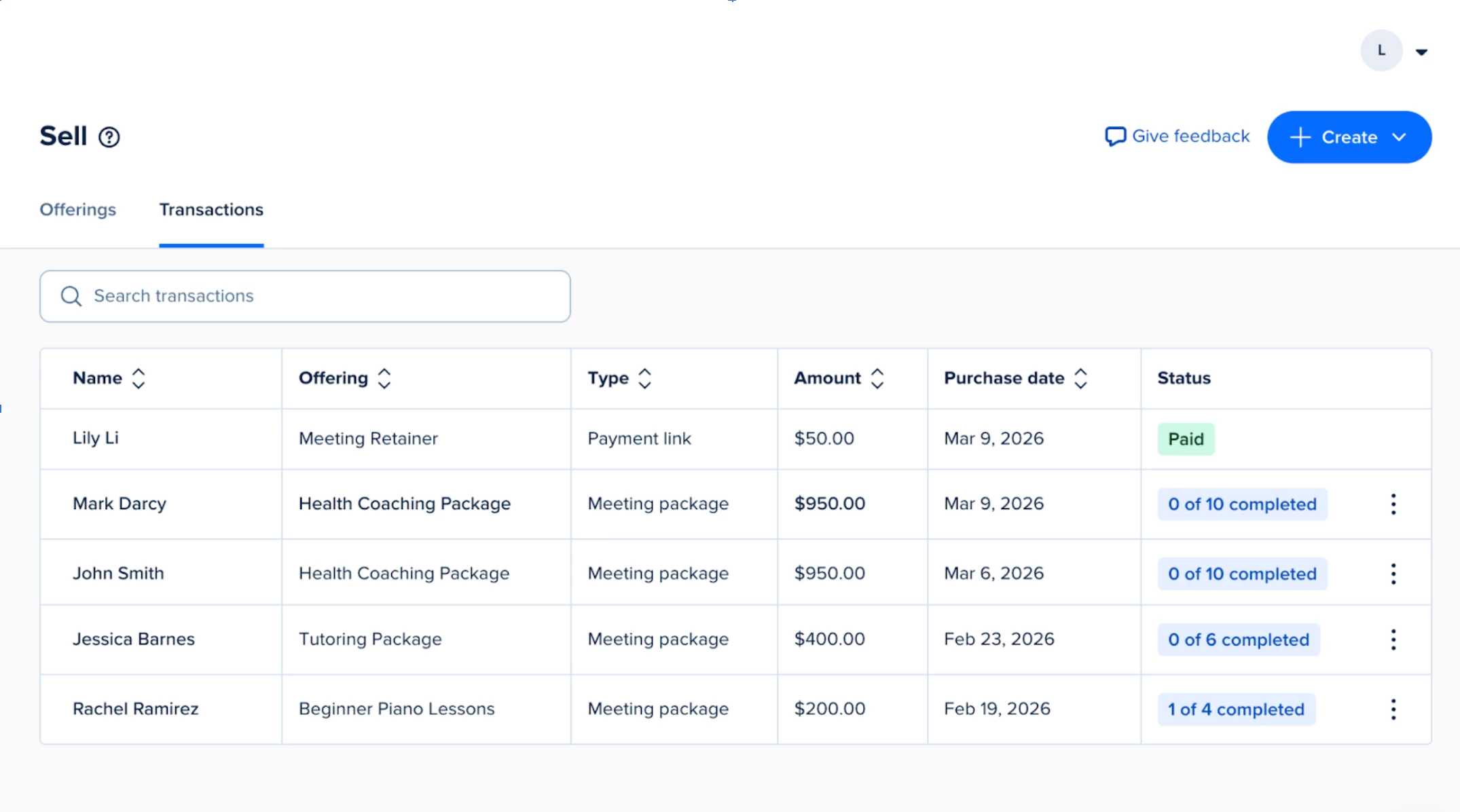
From the Transactions tab, you can view all purchases, including the client’s name, the offering purchased, the amount paid, the purchase date, and status of their offering.
We can’t wait to see how you use these new features to sell and earn more with Calendly. Have questions or feedback? Leave it in the comments below, or click the Give Feedback button on the Sell tab.
Visit the Help Center for more information on meeting packages and payment links.
FAQ
Q. Do I have to use Stripe? Can I use this with the PayPal Integration?
A. These features are only available with the Stripe Integration at this time.
Q. Can I create a free meeting package?
A. No, meeting packages currently require payment.
Q. Are meeting packages the same as recurring meetings?
A. No, meeting packages allow you to sell a predetermined number of meetings that are booked individually, not set to repeat on a schedule.