
Sam S
Employee
Employee
February 9, 2024

Adding Additional Guests to Booked Meetings

  • February 9, 2024
  • 15 replies
  • 11804 views

Cheerio CalPals!

I’ve come across a frequently asked question in my support conversations recently that inspired me to make a little how-to on a workaround I recommend on the regular that answers the question–


How can I add additional meeting attendees to existing booked one-on-one meetings? 


While yes, adding your guests directly to the calendar event in your external calendar is a perfectly good solution to loop additional guests to your meetings, there are a couple of drawbacks to this method:

  1. Guests added in this way will not be included in any Calendly reminders or Workflows.
  2. They are kicked from the meeting if it happens to be rescheduled. 

This isn’t ideal, so I wanted to drop a super helpful workaround I’ve found for this that allows you to add guests to one-on-one meetings within the Calendly loop.


Problem: At this time, Calendly does not offer a function to “Add Guests” to an existing booked meeting directly from the Meetings page


Solution: Using the “Reschedule” function, you can access the “Add Guests” feature for a booked one-on-one or collective event.

By “rescheduling” the event for the same date/time as the original booking, you can add your additional guests when going through the reschedule flow. You can also include a reschedule note to your invitees clarifying the reason for the “reschedule”. 


Who Can Use This?

Calendly’s “Add Guests” feature is available to users on all plans, from Free to Enterprise. 

To learn about the features in each plan, feel free to check out our pricing page!


Step-By-Step Instructions

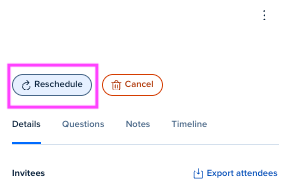
  1. From your Meetings page in Calendly, click the booked event you wish to add guests to and select “Reschedule”.
     
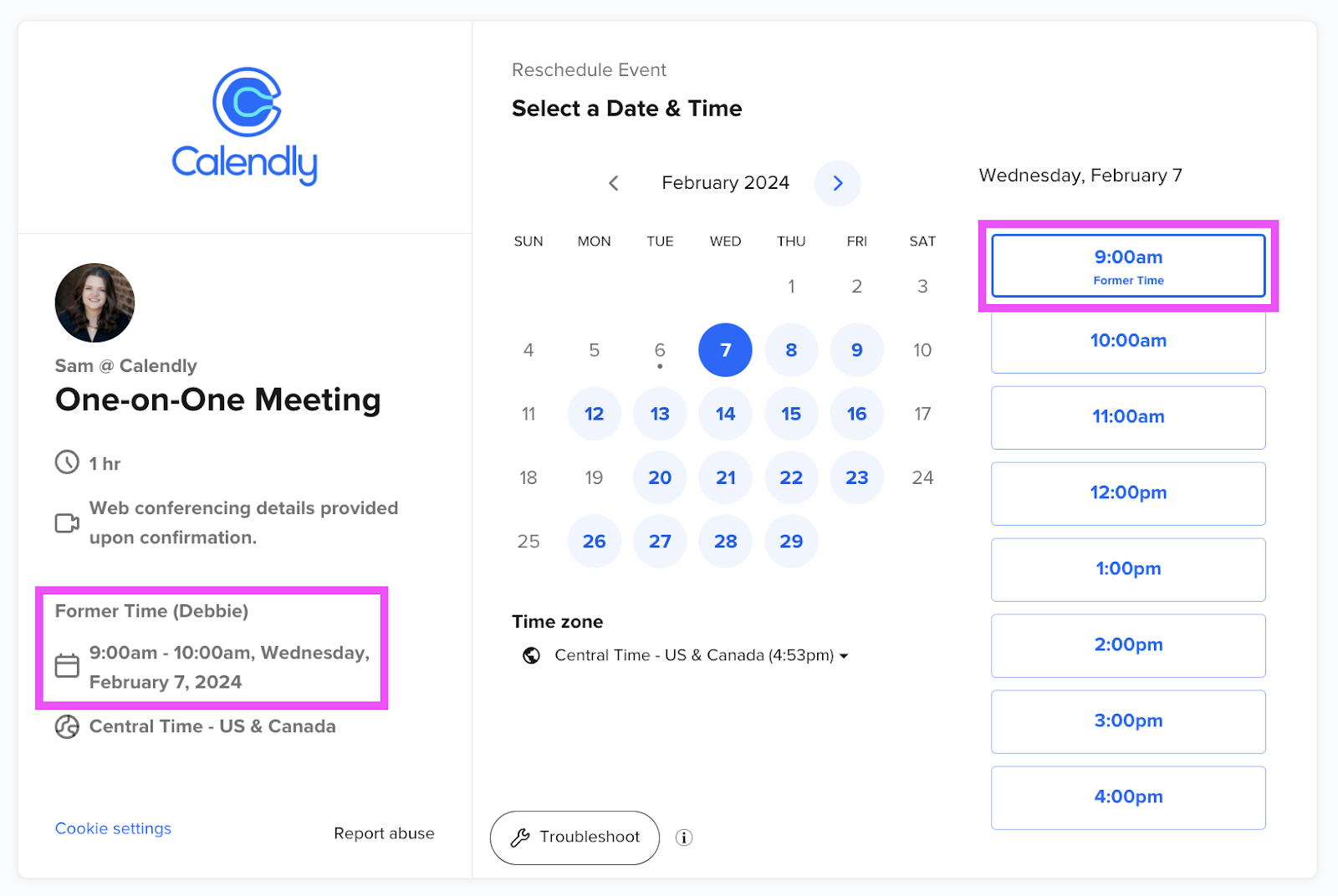
  2. If you are not moving the date/time of the meeting, select the booked invitee’s “former time” as indicated on the left hand side of the reschedule page. 
    SPKW9noRqZUMyt5_vMqzvj-jve9RR1dDkDJb2mFQzWSd-lPwhz7PHJFP5dsMc2eQZloMSZ6KkcQ4whG4Mp_gEoRKkJP7qgzuesvVaQhPKOtawmkWgoZPRE2L2juwMNYlOO-jRe7GfCUIxqfqnYWXqpg
     
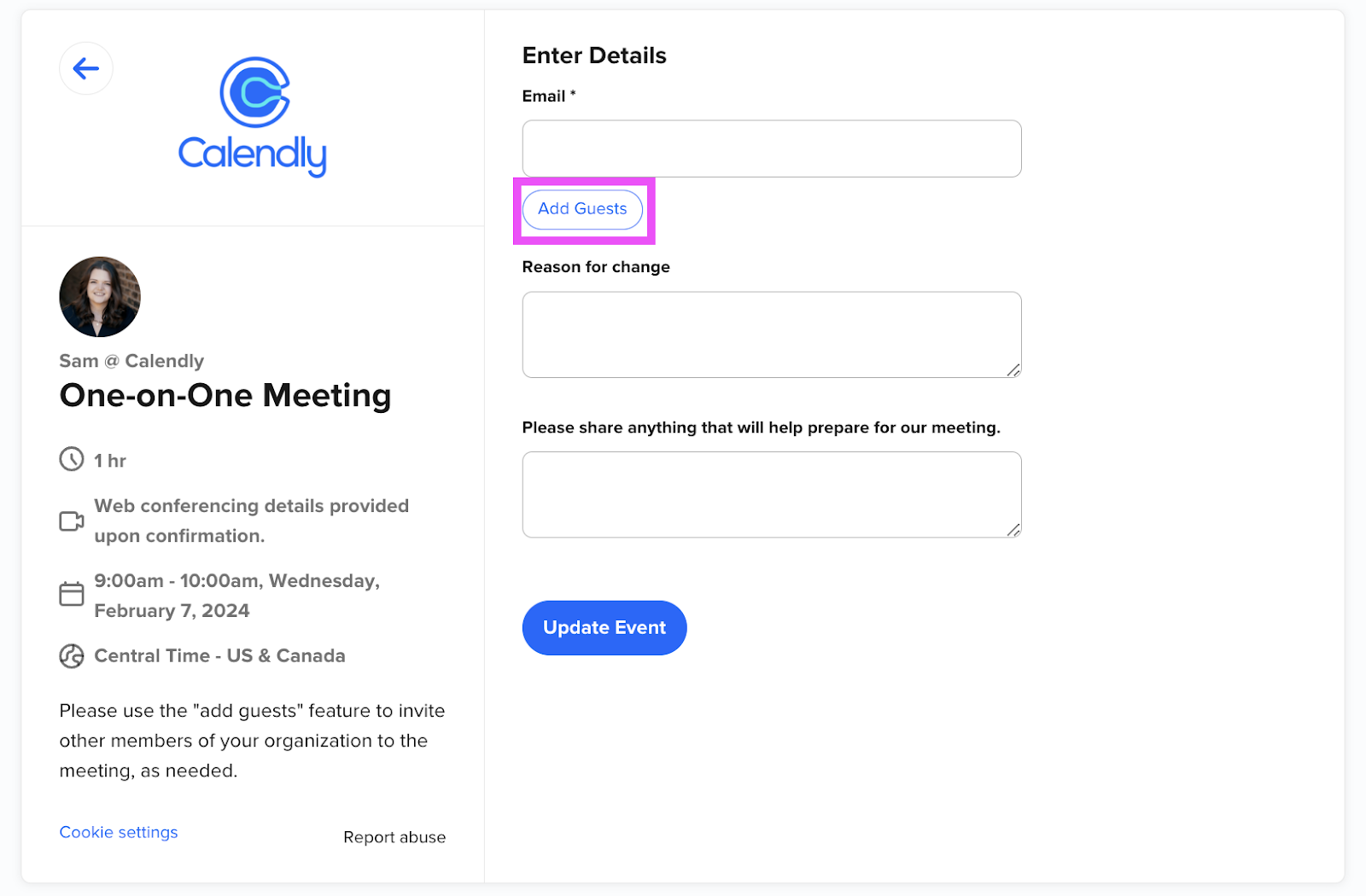
  3. Select “Add Guests” beneath where your existing invitee’s email will pre-populate.
    i-P8ErEUlFlG5guatO9ay7wHUZF4ge0fCWgez1GHF_Ko4NgPxjdOjTTlJtWS_Fhit4v4BKOBQmHd2wKUNGNUBqgZShG6F9IcJbs8U3qvF5gLTUdyebEe_7D3jwawThVrp0t-8n5W1-e-Itedk4u0z_k
    Note: I have removed the original invitee’s email from the “Email” field for this screenshot.
     
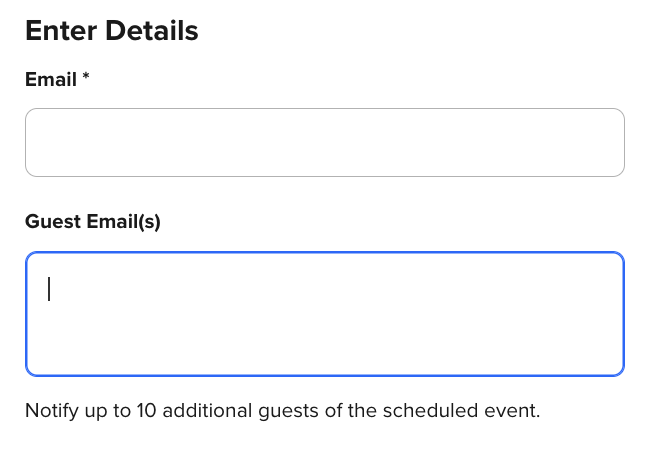
  4. Add the email addresses of up to 10 guests you wish to add to the meeting under “Guest Email(s)”.
    nG9D56z5wQyJ7EaaDwNPyfpEIJRiTUbTMZrWb-UWYlTTQ7OLVVik-Ji4ea-X8C5DSPPzzWQEyfRL_oHmJSmKERNyzg8JmStaj4QnTkMFgYmJZ5EoHjF-Z6Ga_5mbsjRU1LkHS8CB_Lz_Vc3tA6GxVJs
     
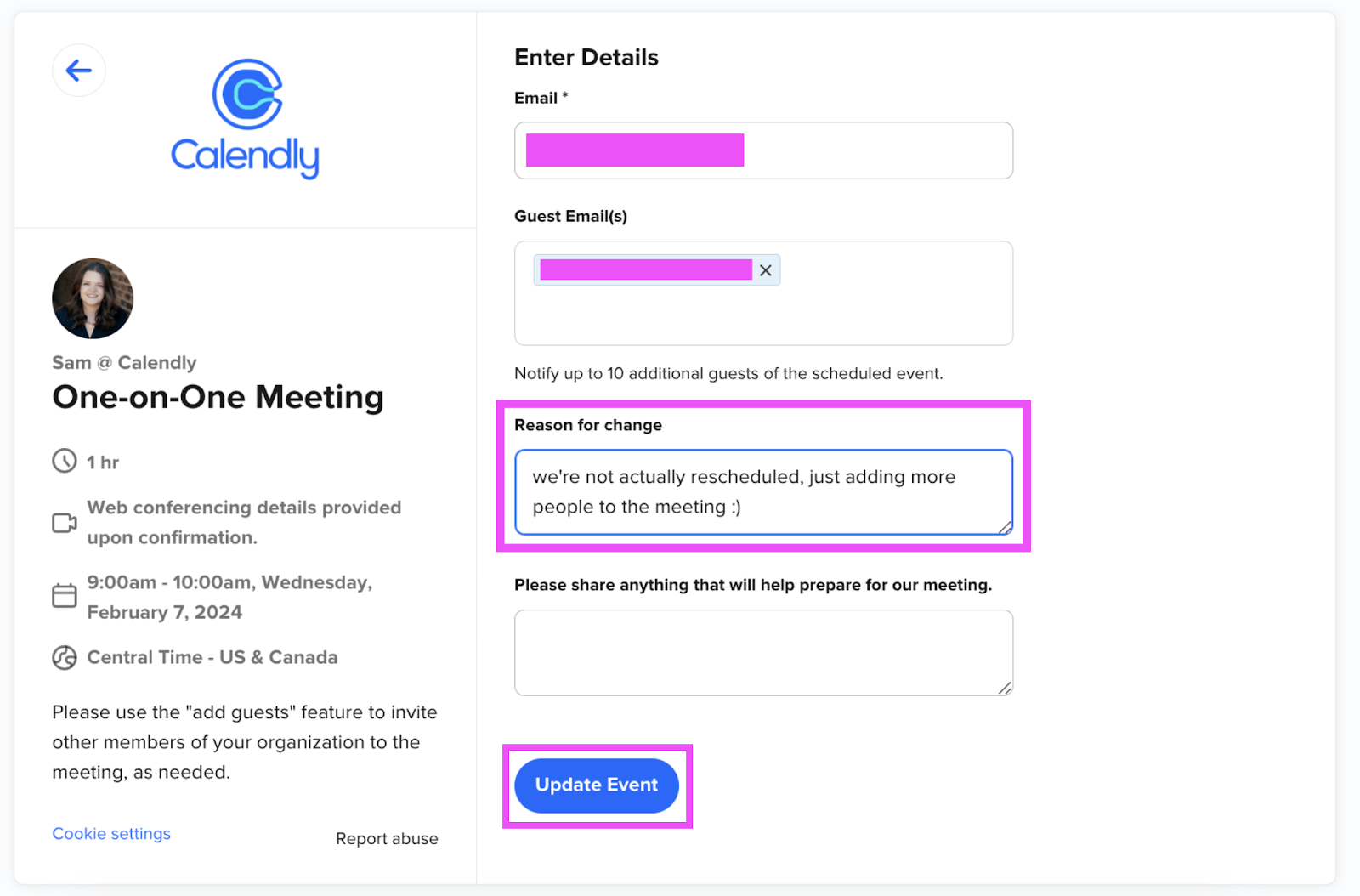
  5. You can then add a reschedule note to provide clarification to your invitees that the meeting time is not rescheduled, but that you are simply adding more people to the meeting, and then click “Update Event”.
    xox2i30fLw62DNvGDOIkR6LsUAGokrAzKi8N9RijzKvx7MaHfZPPNrZTHVZ5zt7zesC2yOREeyikIp-Sv8XNmyj5ehianOon-sl82La27hdLmehWhxXd63JlrzJE6965J1Lbi184hyoZVeAglUxLaUk
     
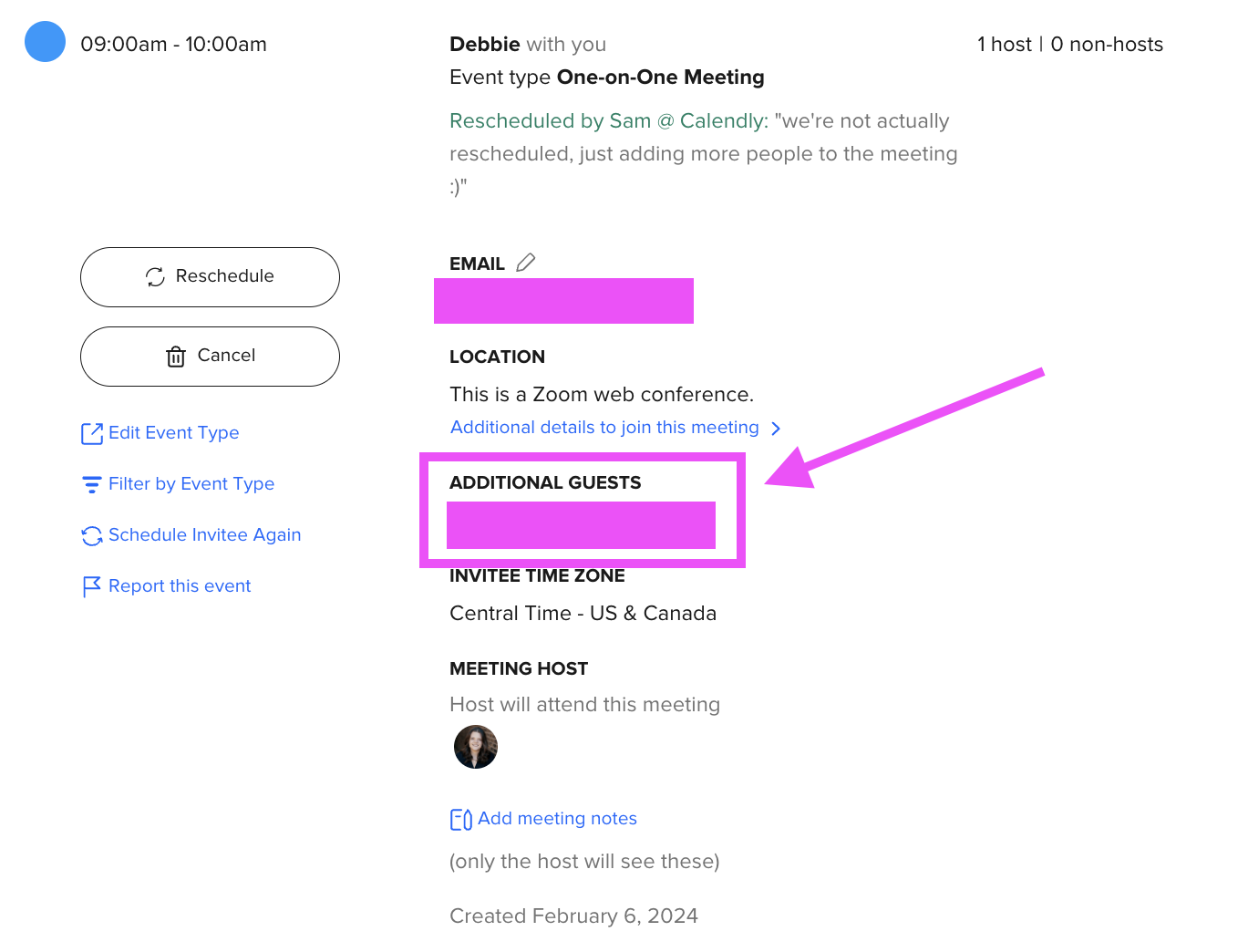
  6. You will then be able to see your new additional guests from the event details in your Meetings page, as shown here.
    y4v0Tx0XDF0Ehb41yZzL3ZtjpL8bCcoumOELOVmRARXVMYPAjHklmZgkcP09GWngqtc1flnOG5ErLB-nA-yTLVa2LtYPU0y1AqgoxqywSeb404OI1EtBX0tn-UNgnmiDBz_ummfB4gWvLgBc6s0oD9k


I hope this workaround is helpful! As always, please please always feel welcome to let us know any questions you have, or any cool ways you’ve found to use Calendly! 


Cheers!

Sam

This topic has been closed for replies.

15 replies

jillian
Community Member
July 25, 2024

@bfelderhoff There’s definitely a lot that goes into things like this, but innovative and creative customers like yourself definitely help! 

I’m tagging in @SchedulingSteve here to see if he has any additional thoughts or wants any more context/feedback.

Thank you!

New Community Member
October 9, 2024

Thanks for the guideance and workaround suggestions.  I do hope Calendly adds the capability to add guests to an existing meeting as I imagine this is a frequent need.  The workarounds aren’t an option as we wouldn’t want to confuse the guests by canceling and/or rescheduling the event.  Getting the original timeslots booked is hard enough.  Further, the fact that the original timeslot is unavailable unless cancelled is a non-starter.  Fair to say, the only viable option at this point is to exit the Calendly UI and add the guest directly on the external calendar event.  Again, add a vote to remedy this issue ASAP.  Thanks!

New Community Member
January 14, 2025

Any chance that this is coming to Calendly any soon?

New Community Member
January 21, 2025

Also following. I have a paid event full booked by 25 attendees and wanted to increase the available invitee spots. It lets me do this in the event settings but does not make the event available on the booking page.

David
Community Manager
Community Manager
January 22, 2025

Hi ​@Jane47858Jane - Thanks for reaching out!

If you have a Booked Group Event you’d like to increase the number of slots for, you can adjust it over on your meetings page! Just find the event, select it, then select Edit Invitee Limit. This will make it so this specific event has an increased number of slots.


Let me know if this works!