Solved

Help to update location of managed events

  • March 19, 2026
  • 2 replies
  • 51 views

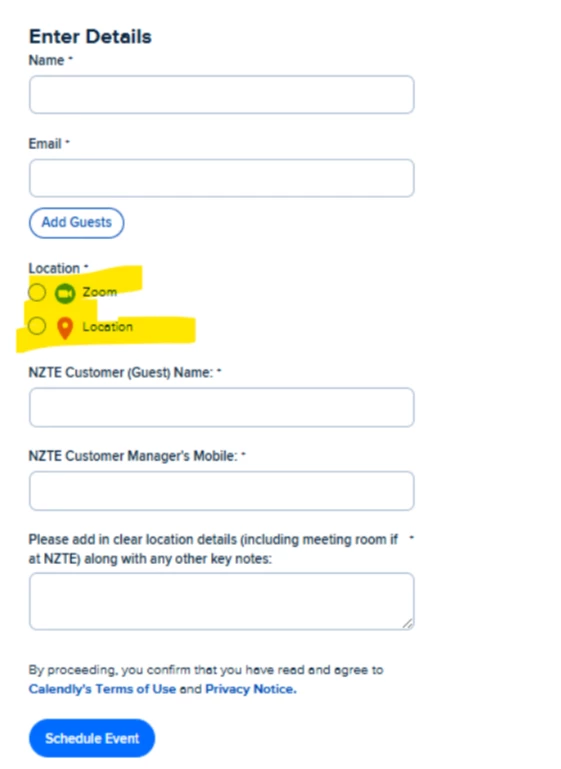
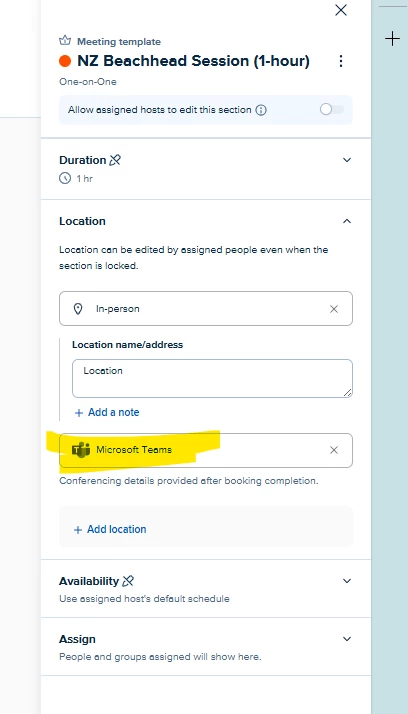
I manage a group of individuals who are assigned to a series of ‘managed events’.  We’ve recently made the shift from zoom to M365 Teams, and all individuals have integrated this app. From each managed event, I have removed zoom, and added M365 Teams to the location (see image 1).  However, this doesn’t seem to be reflected in the booking system (see image 2). How do I fix this fast so we don’t disrupt users.


Best answer by jillian

Hi ​@JenGriff,

Here’s what’s going on, and how to fix it quickly with minimal disruption.

With Managed Events:

  • Each assignee gets their own copy of the event type, linked to your managed template.
  • Location is always editable at the user level and does not stay auto-synced with the managed template. Changing the location in Admin Center → Managed events does not reliably overwrite each person’s version the way locked fields do.
  • Also, any meetings that were already booked keep their original location and video link; updates to the event type only affect new bookings going forward.

That’s why you’re seeing a mismatch after switching from Zoom to Microsoft Teams.


Fastest way to fix it (with least disruption)

1. Make sure Teams is correctly connected for everyone

For each host:

  • Go to Integrations → Microsoft Teams and confirm it’s connected and available as a conferencing location.

This ensures Calendly can actually generate Teams links.


2. Fix future bookings

You have two main options:

Option A - Safest / least risky (recommended)
Have each host update their own managed event:

  1. Each user opens their managed event from their own Event Types page.
  2. In Location, choose Microsoft Teams as the conferencing option and save.

Because location is always editable by the user, this immediately updates what invitees see on the booking page for future bookings, without touching existing ones.

Option B - Centralized, but more disruptive
From Admin Center → Managed events:

  1. Unassign the managed event from users, then
  2. Re-assign it.

This effectively replaces each user’s version with the updated template, including your new location, but it can invalidate existing reschedule links and overwrite any user-level customizations.

Use this only if you’re okay with that tradeoff.


3. Handle meetings that were already booked

Those existing calendar invites will keep their Zoom details even after you change the event type.

To avoid disruption:

  • Either edit the calendar invite directly (swap the Zoom link for the Teams link or a Teams meeting), or
  • Cancel and rebook/reschedule via Calendly so the invitee receives a fresh invite with Teams.

Prioritize doing this only for your high-impact upcoming meetings so you can move quickly.


Hope this helps!

2 replies

jillian
Community Manager
  • Community Manager
  • Answer
  • March 19, 2026

Hi ​@JenGriff,

Here’s what’s going on, and how to fix it quickly with minimal disruption.

With Managed Events:

  • Each assignee gets their own copy of the event type, linked to your managed template.
  • Location is always editable at the user level and does not stay auto-synced with the managed template. Changing the location in Admin Center → Managed events does not reliably overwrite each person’s version the way locked fields do.
  • Also, any meetings that were already booked keep their original location and video link; updates to the event type only affect new bookings going forward.

That’s why you’re seeing a mismatch after switching from Zoom to Microsoft Teams.


Fastest way to fix it (with least disruption)

1. Make sure Teams is correctly connected for everyone

For each host:

  • Go to Integrations → Microsoft Teams and confirm it’s connected and available as a conferencing location.

This ensures Calendly can actually generate Teams links.


2. Fix future bookings

You have two main options:

Option A - Safest / least risky (recommended)
Have each host update their own managed event:

  1. Each user opens their managed event from their own Event Types page.
  2. In Location, choose Microsoft Teams as the conferencing option and save.

Because location is always editable by the user, this immediately updates what invitees see on the booking page for future bookings, without touching existing ones.

Option B - Centralized, but more disruptive
From Admin Center → Managed events:

  1. Unassign the managed event from users, then
  2. Re-assign it.

This effectively replaces each user’s version with the updated template, including your new location, but it can invalidate existing reschedule links and overwrite any user-level customizations.

Use this only if you’re okay with that tradeoff.


3. Handle meetings that were already booked

Those existing calendar invites will keep their Zoom details even after you change the event type.

To avoid disruption:

  • Either edit the calendar invite directly (swap the Zoom link for the Teams link or a Teams meeting), or
  • Cancel and rebook/reschedule via Calendly so the invitee receives a fresh invite with Teams.

Prioritize doing this only for your high-impact upcoming meetings so you can move quickly.


Hope this helps!

  • Author
  • Community Member
  • March 19, 2026

This has been super helpful, thank you.