I would like to send out all open dates to my vendor list so they can choose and book their own session time. The schedule would be alternate Wednesdays at one specific time.
Hey all! Of course, I’d be happy to help here. For users who want to setup alternating dates for a lunch and learn, I’ve included some steps below on how to set this up!
First, you’ll want to create the event (You can choose the One-on-one event type if you’d like it to be with one other person, or the Group event type if you’d like it to be with multiple)
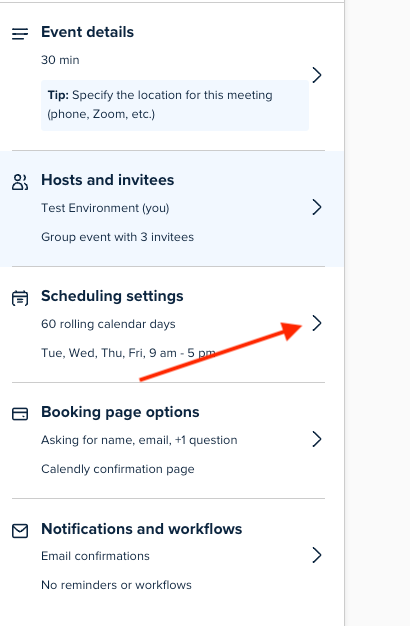
Once you have your event created, you can add the name and the location of the event like normal. Once this is done, to setup the dates, you’ll need to go into your Scheduling Settings option here:
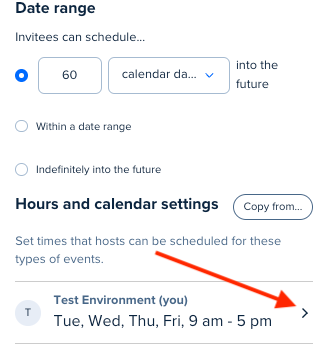
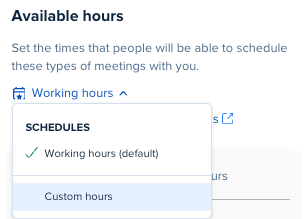
Once here, select the option below Hours and Calendar Settings, and set available hours to Custom Hours:
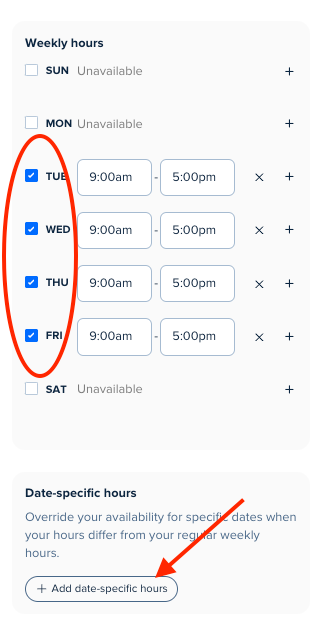
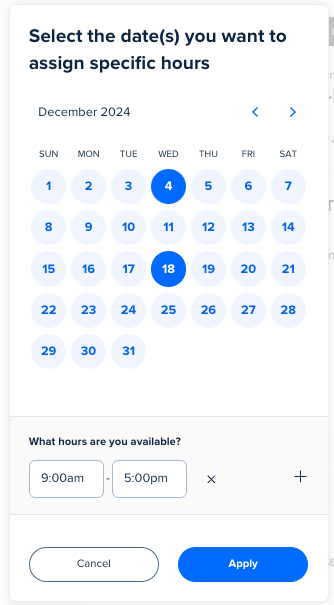
Once its set to Custom Hours, go ahead and remove any Weekly hours to prevent those times from appearing. Afterwards, select the Add date-specific hours option to select every other wednesday, and to adjust the time for those dates:
Once this is done, you can save and apply all of these options and send it to your clients or vendors. They will be able to book those Wednesdays (Or any other days you choose) from there! Let us know if you have any other questions. 😃
Currently I send an email to each individual vendor with a couple of date options, wait a couple of days for their response, then move onto the next vendor. This causes alot of back and forth with all the vendors all while more than one wanting the same date. I am looking at how to be more efficient with sending out the available dates to multiple vendors, all at one time, and them registering themselves “first come-first serve”. The schedule would be 12-1pm on alternating Wednesdays. Once a vendor registers for a date, that date should be unavailable for another vendor to register.
Great, in this case, the one-on-one event should do just fine. If you use a Group Event, it would allow multiple vendors to book at the same time, so using the one-on-one event should prevent them, but also still be able to add users from their end to the meeting if needed. They can do this after booking by adding them as a guest, or by adding them to the event on their calendar.
It would be more for the purpose of coordinating the available dates and I will send out a separate Outlook calendar invite. The vendor can add someone to the Outlook invite.
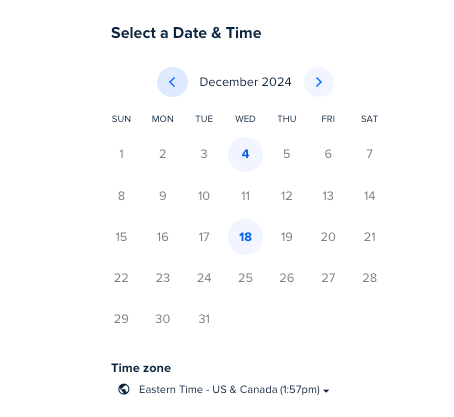
I have chosen Date-specific hours (alternating Wednesdays) but the preview is showing every Wednesday. For example, I do not want Jan 15 as an option, but it shows on the calendar.
Hi @Dena41680! Happy Monday! I appreciate your patience here.
In this case, the next thing you’d want to check is ensuring all weekly hours are removed from the availability page. Right above where you set Date-specific hours, you’ll have the option to set Weekly hours. In your case, since you don’t want this recurring every week, you’ll want to unselect it here:
Can you try unselecting this and let me know if it works? Thank you!