
jillian
Community Member
October 23, 2023

Time Zone Troubleshooting Guide

  • October 23, 2023
  • 23 replies
  • 13045 views
Time Zone Troubleshooting Guide

You’ve sent out your Calendly to book or perhaps you’ve just scheduled the perfect time on someone else’s Calendly. And ding! The confirmation email arrives, but not with the time you were expecting. You could have sworn you’d picked noon your time? Why is it saying 1pm? 4pm? Why is it saying the wrong time?!

In this article, we’re going to troubleshoot why sometimes appointments and confirmations don’t appear to line up and what to do either as the invitee/attendee or the host.


Who is this article for? All users, regardless of plan type or role on plan, are impacted by time zones. This article is for all Calendly users.


How are time zones detected?

Whether you’re the host or invitee/attendee, time zones are detected by checking your device settings and synced calendars. You can learn everything you ever wanted to know about Calendly and time zones here.

The time zone displayed on the booking page is the one that will be shown in any email confirmation or reminder received from Calendly. This means that if an invitee schedules 1pm PST on the booking page, the meeting invite they’ll receive will also be for 1pm PST but adjusted for their time zone. For example, I’m located in EST meaning 1pm PST would show up as 4pm EST for me.


What should you check?

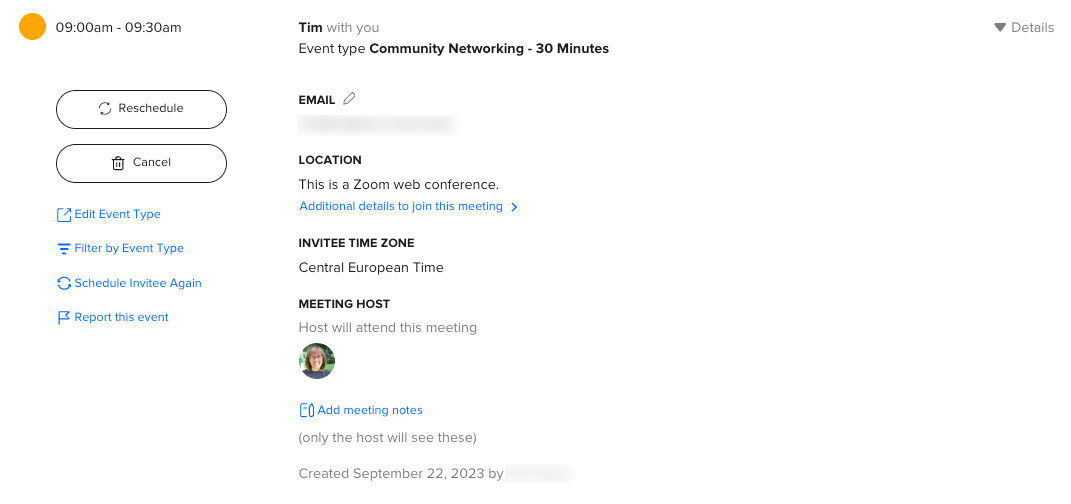
  1. Are you using a VPN? Is your system time setting correct? Keep in mind this goes for mobile devices too! As the host, you can check the invitee’s time zone by going to Meetings and clicking on the “Details” dropdown for any event.
 

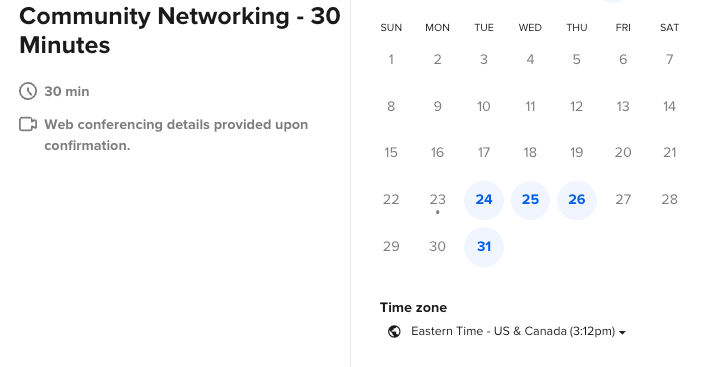
As the invitee, check the bottom of the booking page to ensure the timezone lines up with what you expect to see.
  1. Is your calendar set to the correct time zone? This is especially important to check if you’re on travel as you can often tell your calendar to either update to the new detected time zone or stay in your home time zone.
  1. Does your email provider show times in UTC or default to UTC? This can become a problem when Calendly tries to detect your time zone, but either can’t or receives conflicting information. When this happens, the timezone defaults to UTC. This is especially common with Hotmail, Yahoo, and AOL email addresses.
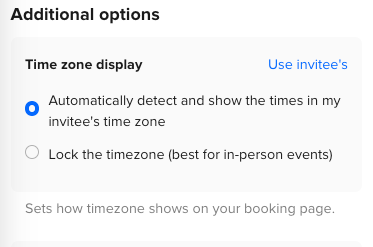
  1. Did the host lock the time zone? If the host locked the time zone and the invitee is in a different time zone, this means the selected time will reflect the hosts time zone.
 

This topic has been closed for replies.

23 replies

Kelsi
CalPal Emeritus
March 17, 2024

Hey there, Calendly Community! I wanted to add to my own above comment about locking the timezone in your event type settings for those of you that are scrolling through this thread. The comment above is helpful - but not very detailed. I go over it in more detail, here, with written instructions and step-by-step screenshots for our more visual learners (like me!). See below for those steps!

  1. Click into any event type to edit settings
  2. Click “scheduling settings” 
  3. Scroll to “additional options” 
  4. Next to “time zone display” click the default “use invitee’s” to edit
  5. Here, you can select “lock the timezone (best for in person events)” > click “save and close”
Click into any event type to edit settings > click “Scheduling settings”
Under “Additional options” click “Use invitee’s” next to “Time zone display”
Select “Lock the timezone (best for in person events)” > you will see “Locked” appear in the top right of this section > click “Save and close” at the bottom of the editor


Kelsi - Calendly Community
New Community Member
March 19, 2024

I am trying to lock my time zone to Central since we are scheduling onsite meetings for a conference. I have set my profile time zone as Central but the time zone display keeps defaulting to East Coast (where I live). Not sure what else to try.  


UPDATE: Found the answer. Adjusted the time in Availability.

Kelsi
CalPal Emeritus
March 19, 2024

Hey @IntelliBoard18664 - glad you were able to work this out yourself - we love to see it! Let us know if you get stuck on anything else and we’ll be here to assist! 

Kelsi - Calendly Community
New Community Member
May 16, 2024

Hi, new user here. I’m still confused. My time zone is Suriname which is same as Brasil. I only want video calls from 9-12 in the morning. If a prospect from the Netherlands which are 5 hours ahead of me should see 14-17. Miami is one hour behind so should see 8-11. Which option should I use? The inventee’s or the locked option?


Kelsi
CalPal Emeritus
May 16, 2024

Hey @Sjoerd26278 - great question! 

You will not want to use the “locked” option for this use case. When you lock the timezone, that will display the event type in your timezone on the booking page and in confirmations, which is great for in-person events, but would only cause a lot of confusion for virtual events that invitees in different timezones can book and join!

You’ll want to use the invitee’s timezone. When you choose this option, Calendly intelligently detects the timezone of your invitees based on their device settings. When they visit your scheduling page, your availability will be displayed in their timezone. (You can learn more about Calendly's time zone settings here!)

Rest assured that your bookings will still appear in your timezone for you, and in your invitees’ timezones for them.

I hope this helps!

p.s. I saw that you’re new - welcome to Calendly Community (and Calendly, proper)! You’ll definitely want to check out our New User Guide. It is packed full of tips + tricks to get you started and help you learn the ropes! It goes into all sorts of things from setting up your event type settings (to include timezones), setting your Availability Schedules and applying them to event types, integrating things like Zoom and more. Happy reading! 

Kelsi - Calendly Community
New Community Member
June 2, 2024

Hello Kelsi,

I would like to remove the time zone mention from my appointment confirmations. When clients receive the appointment confirmation, it should only show the time, like 15:00, without specifying "Middle European Time."

Thank you.

jillian
jillianAuthor
Community Member
June 3, 2024

Hi @Elyas84121,

There is no way to remove the time zone from the appointment confirmations unfortunately. And even if you could, I wouldn’t recommend it. In this day and age with so much remote work and cross-timezone collaboration, having the time zones ensures people know exactly what time they should be showing up at and that they’re anticipating the right time zone.

New Community Member
June 3, 2024

jillian Thank you


New Community Member
June 20, 2024

Year-round we offer remote trainings via zoom which we have figured out without issue, balancing our time zine and that of the person booking.

A few times each year we also have a team that travels to a tradeshow where we have potential customers schedule time to meet at our booth. These events are in different time zones from our main office that conducts the year-round trainings. Is there any way to have these tradeshow events be locked to EST while at the same time offering our trainings at MST?

Kelsi
CalPal Emeritus
June 20, 2024

Hey there @Lashbrook54058 -- yes!

All you have to do is set the timezone for the event type, then lock that timezone (only suggested if these are in-person events, which it does seem they are!). 

Follow the steps in the short Loom video I created for you, below, in order to do this: 

You can set a different timezone for each ET that you need to, then lock it as needed as well. I hope this helps!

Kelsi - Calendly Community