Time Zone Troubleshooting Guide

You’ve sent out your Calendly to book or perhaps you’ve just scheduled the perfect time on someone else’s Calendly. And ding! The confirmation email arrives, but not with the time you were expecting. You could have sworn you’d picked noon your time? Why is it saying 1pm? 4pm? Why is it saying the wrong time?!
In this article, we’re going to troubleshoot why sometimes appointments and confirmations don’t appear to line up and what to do either as the invitee/attendee or the host.
Who is this article for? All users, regardless of plan type or role on plan, are impacted by time zones. This article is for all Calendly users.
How are time zones detected?
Whether you’re the host or invitee/attendee, time zones are detected by checking your device settings and synced calendars. You can learn everything you ever wanted to know about Calendly and time zones here.
The time zone displayed on the booking page is the one that will be shown in any email confirmation or reminder received from Calendly. This means that if an invitee schedules 1pm PST on the booking page, the meeting invite they’ll receive will also be for 1pm PST but adjusted for their time zone. For example, I’m located in EST meaning 1pm PST would show up as 4pm EST for me.
What should you check?
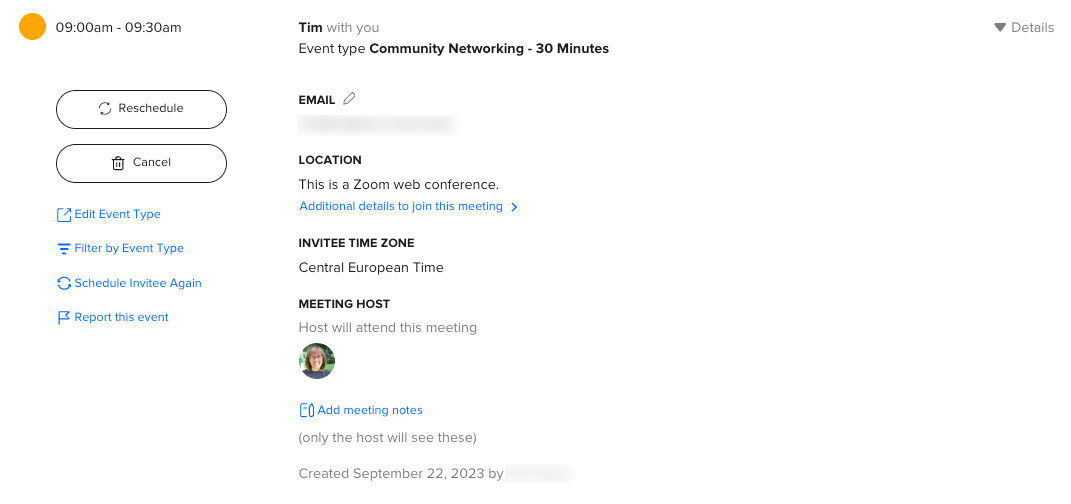
- Are you using a VPN? Is your system time setting correct? Keep in mind this goes for mobile devices too! As the host, you can check the invitee’s time zone by going to Meetings and clicking on the “Details” dropdown for any event.
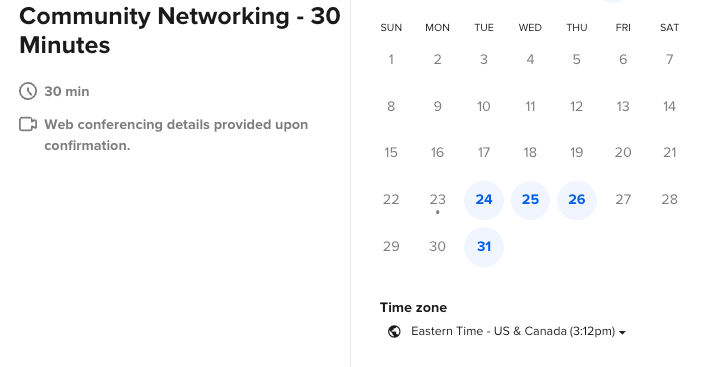
As the invitee, check the bottom of the booking page to ensure the timezone lines up with what you expect to see.
- Is your calendar set to the correct time zone? This is especially important to check if you’re on travel as you can often tell your calendar to either update to the new detected time zone or stay in your home time zone.
- Does your email provider show times in UTC or default to UTC? This can become a problem when Calendly tries to detect your time zone, but either can’t or receives conflicting information. When this happens, the timezone defaults to UTC. This is especially common with Hotmail, Yahoo, and AOL email addresses.
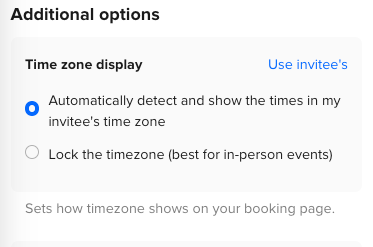
- Did the host lock the time zone? If the host locked the time zone and the invitee is in a different time zone, this means the selected time will reflect the hosts time zone.